How to set up proxy usage alerts in Discord
2026-07-21 · Bazyl
Basil Proxies can post a message into a Discord channel the moment your bandwidth crosses a line you care about. Four lines, in fact: 80% of your plan used, 1 GB remaining, out of data, and a daily gigabyte limit you set yourself. Setup lives in the dashboard under Settings → Notifications, takes about two minutes, and needs nothing more than a Discord server you can manage.
Here is how to turn it on, what each alert actually measures, and the handful of rules that decide when one fires.
Why bother
Running out of proxy data is not a loud failure. There is no alarm. Your scraper does not stop — it keeps firing requests at an endpoint that has nothing left to give, collecting errors that look exactly like a site blocking you. By the time anyone notices, you have a half-finished dataset, a log full of misleading failures, and no idea when things actually broke.
The other direction hurts too. A misconfigured job that forgets to close connections, a retry loop with no ceiling, a proxy left attached to a browser profile overnight — any of these can chew through a month of bandwidth in an afternoon. Pay-as-you-go balance does not expire, and unused subscription data rolls over, so nobody is watching a clock for you.
An alert turns both of those into a message you get while you can still do something about it. That is the entire value: not automation, just early warning.
What you'll need
A Discord server where you have permission to manage webhooks, and a Basil Proxies account with residential or mobile bandwidth. That's it. No bot to install, no OAuth flow, no extra software.
Step 1 — Create a webhook in Discord
A Discord webhook is a URL that lets an outside service post into one specific channel. It is not an app and it cannot read anything — it only writes.
In Discord, open Server Settings → Integrations → Webhooks, click New Webhook, and pick the channel the alerts should land in. Give it a name you'll recognise later, then click Copy Webhook URL.
You'll get a URL shaped like this:
https://discord.com/api/webhooks/1234567890123456789/aBcDeF...
Treat that URL like a password. Anyone who has it can post into that channel, so keep it out of public channels, shared documents, and screenshots. If it ever leaks, delete the webhook in Discord and make a new one — that instantly kills the old URL.
A private channel is a good home for these. Alerts tell people something about how much work you're running.
Step 2 — Open Settings → Notifications
Sign in to the dashboard and go to Settings, then the Notifications tab. You'll see two cards. The top one, Email Notifications, controls what lands in your inbox. The one below it, Discord Webhook Alerts, is what we're setting up.
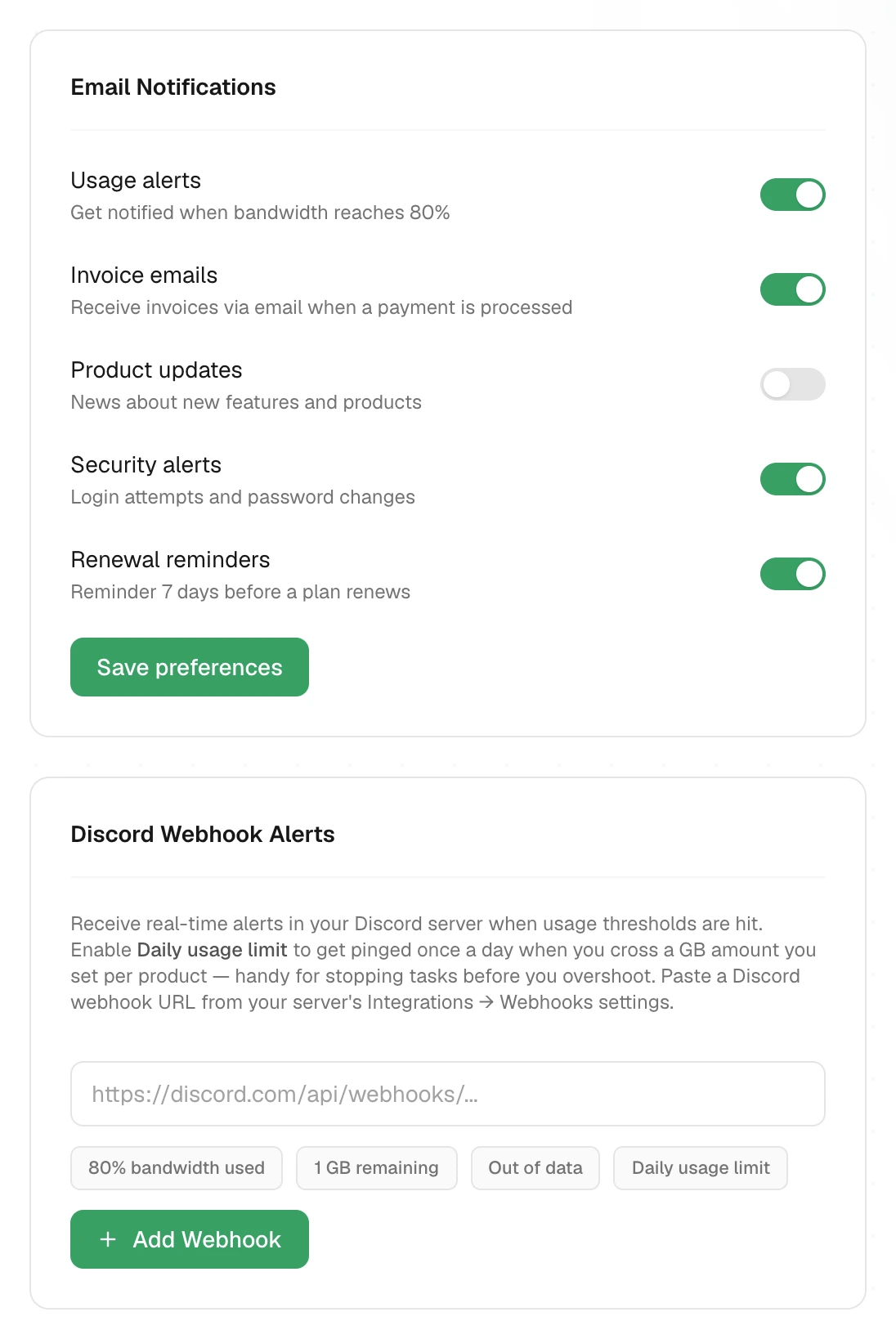
The two are independent, and worth understanding as a pair. Email is a record — it arrives, it sits in your inbox, you read it eventually. Discord is an interrupt — it arrives where you're already working, and someone sees it in seconds. Most people want both for the serious thresholds and Discord only for the routine ones.
Step 3 — Paste the webhook URL
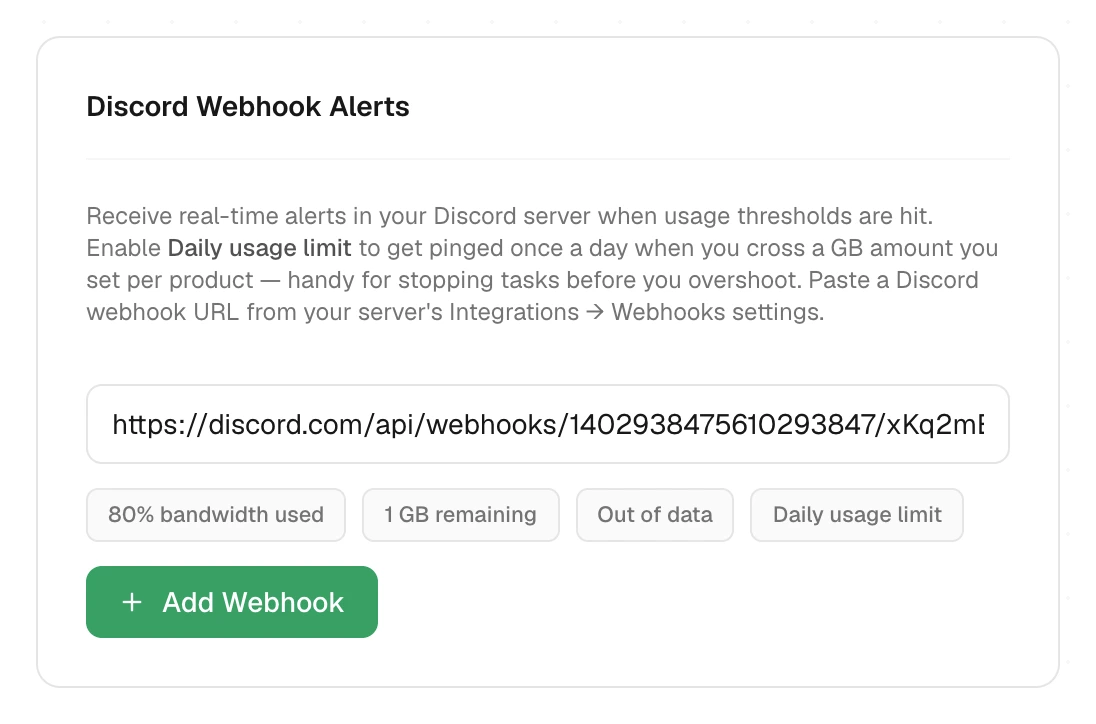
Drop the URL you copied into the input field. The dashboard validates the shape before it will accept it, so a truncated paste or a link to something other than a Discord webhook gets rejected on the spot rather than failing silently later.
Step 4 — Choose which events to send
Pick at least one event. The chips toggle on and off; anything highlighted will be sent to this webhook.
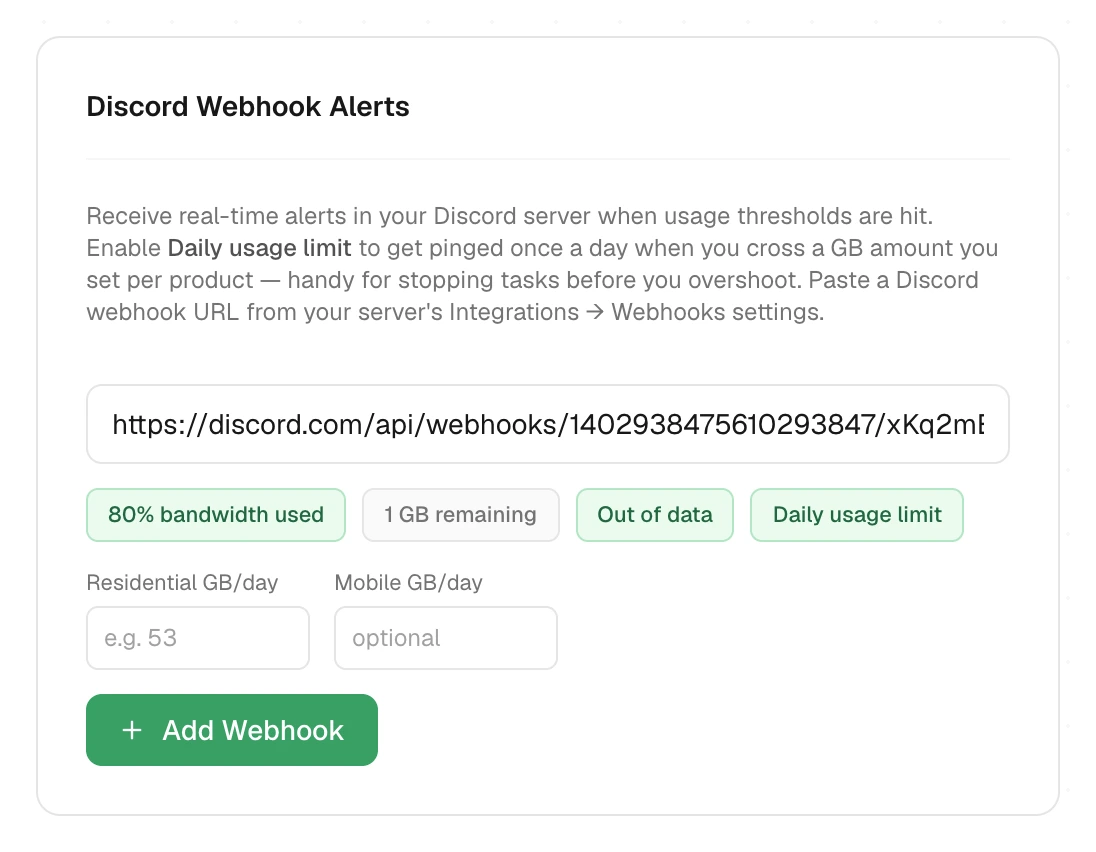
Here's what each one actually measures.
- 80% bandwidth used — fires when your remaining balance drops to 20% of your subscription's monthly allowance. If you carried data over from last cycle, that point arrives later than the 80%-consumed mark.
- 1 GB remaining — fires when your balance drops to 1 GB or below, counting subscription and pay-as-you-go balance together.
- Out of data — fires when that combined balance reaches zero.
- Daily usage limit — fires when you cross a gigabyte figure you set, measured against what you've actually consumed since midnight UTC.
The first three are runway alerts — how much is left. The fourth is a rate alert — how fast you're spending. They answer different questions, and the fourth is the one most people underuse.
Step 5 — Set a daily limit
Turn on Daily usage limit and two fields appear: residential gigabytes per day, and mobile gigabytes per day. Fill in either or both. The alert fires once per product per day, the first time your consumption for that day crosses the number.
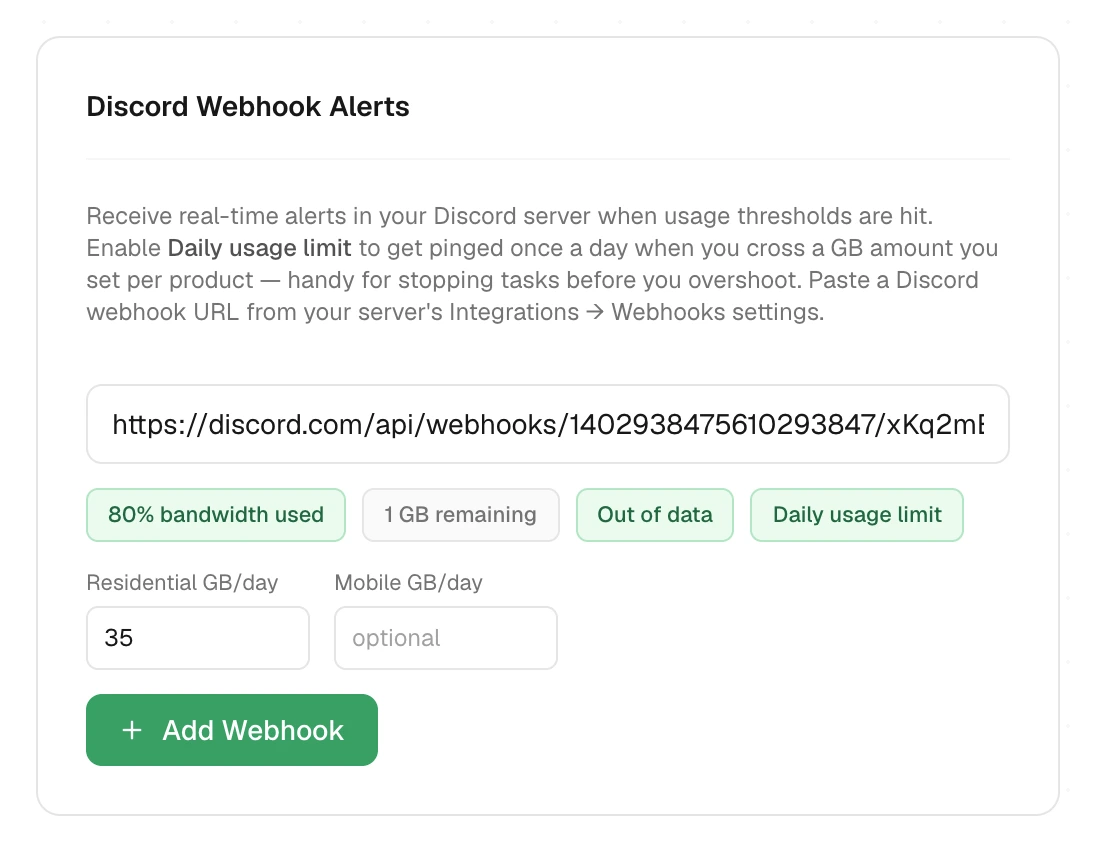
This is the alert worth setting even if you skip the others, for three reasons.
It catches runaway jobs. A normal day for you might be 20 GB; set the limit at 35 and you'll hear about the loop that's gone wrong hours before it empties your balance.
It works on pay-as-you-go. The three threshold alerts need a subscription to measure a percentage against — a balance with no plan behind it has no denominator, so it never crosses 80% of anything. The daily limit doesn't care. It counts real consumption, so it works on any account with bandwidth.
And it turns bandwidth into a budget. Pick your monthly gigabytes, divide by 30, add some headroom, and you have a number that tells you whether this month is on track while there's still time to change course.
Pick your limit from what a normal day actually looks like rather than from your plan size. Your usage statistics in the dashboard will show you.
Step 6 — Add it, then test it
Click Add Webhook. The endpoint appears as its own card with an on/off toggle, the event chips, and two buttons.
Hit Test. The dashboard posts a message straight to your webhook and reports what Discord said back.
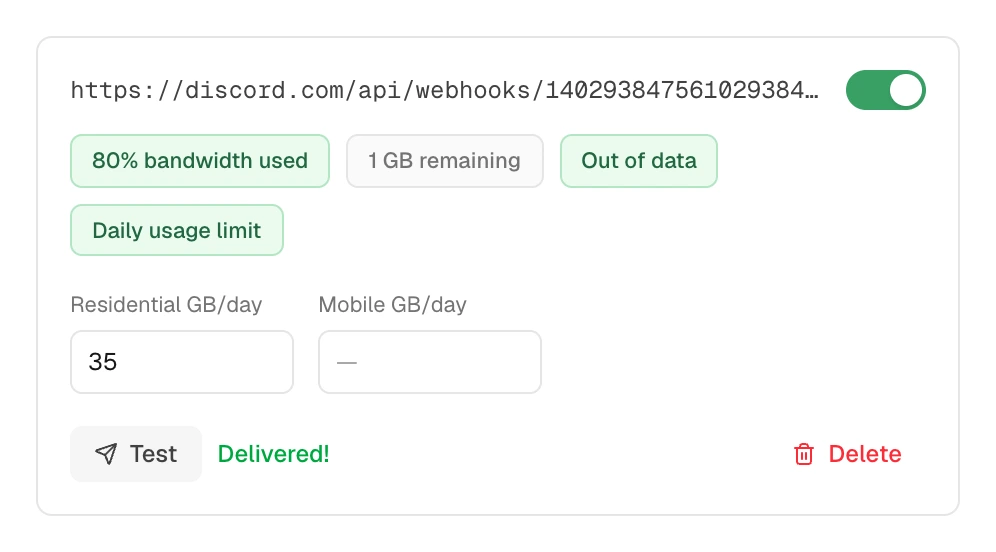
Delivered means the message reached the channel. Go look — it should be there.
Failed means it didn't, and the status code tells you why. 404 almost always means
the webhook was deleted in Discord or the URL was copied incompletely. 401 or 403
means the token no longer matches. Anything showing as a timeout means Discord didn't
answer within five seconds, which is usually a passing outage rather than anything you
configured wrong — try it again in a minute.
Always test. A webhook that was never tested is a webhook you'll find out is broken on the day it mattered.
What the alerts look like
Short, plain messages. No embeds, no pings, no noise:
⚠️ Residential bandwidth at 80% — 12.40 GB remaining.

⚠️ Residential has 1 GB of bandwidth remaining.

🔴 Residential bandwidth depleted. Top up to keep proxies running.

📊 Daily Residential limit reached — 53.00 GB used today (limit: 50.00 GB).
   Tasks still running will keep consuming data.
That last sentence is doing real work. Read on.
The rules that actually matter
Six behaviours decide whether an alert reaches you when you expect it. None of them are obvious from the settings screen.
Alerts are checked every 15 minutes. Usage is pulled from the network on a schedule, and thresholds are evaluated at the end of each pull. So an alert is not instant — worst case you hear about a threshold about 15 minutes after crossing it. Plan your limits with that gap in mind. At 5 GB an hour, 15 minutes is a little over a gigabyte.
Alerts notify. They don't intervene. Nothing gets paused, throttled, or cancelled. If a job is running when the message lands, it keeps running and it keeps spending. The alert is your cue to go stop it.
Each threshold fires once per cycle. Cross 80% and you get one message, not one every 15 minutes for the rest of the month. The three runway alerts re-arm when new data arrives on your account — a renewal, a top-up, or a gift. The daily limit re-arms at midnight UTC.
The three runway alerts need an active subscription. They're a percentage of a monthly allowance, and pay-as-you-go balance has no allowance to be a percentage of. If you're pay-as-you-go only, the daily usage limit is your alert.
ISP proxies aren't included. They're sold per IP, not per gigabyte, so there's no bandwidth counter to watch. Usage alerts cover residential and mobile.
A gigabyte is 1000 megabytes here. Consistently, everywhere — dashboard, invoices,
alerts. A limit of 50 means 50,000 MB.
Three setups that work
Solo, one project. One webhook to a private channel. Turn on the daily limit and out of data, skip the rest. Two alerts you'll actually read beat four you'll learn to ignore.
A team sharing an account. Two webhooks: runway alerts to the channel where whoever handles billing will see them, the daily limit to the channel where the people running jobs work. Different alerts, different audiences, different urgency.
Guarding a budget. Set the daily limit deliberately low — half of what you'd actually accept — and treat the ping as a daily status report rather than an emergency. On a quiet day it never fires. On a busy day it tells you the shape of the month before the month is over.
You can have three endpoints per account, and each keeps its own events and limits.
When something doesn't arrive
Walk it in this order.
Press Test first. If the test fails, the problem is the webhook or the URL, and nothing about your usage settings matters yet. Recreate it in Discord and paste a fresh URL.
If the test succeeds but real alerts never come, check the toggle on the endpoint card — an endpoint that's switched off stays saved but sends nothing. Then check that the event you're waiting for is actually highlighted.
If the daily limit never fires, check the limit itself. A field left blank means no limit for that product, and a limit set above what you'll ever use in a day is the same thing as no limit.
If a runway alert never fires and you're on pay-as-you-go, that's expected — see the rules above. Switch to the daily limit.
And if you crossed a threshold once, got the alert, then crossed it again in the same cycle without a second message, that's the deduplication working. One message per threshold until new data lands.
Turning it off
Toggle an endpoint off to silence it while keeping the configuration, or Delete to remove it entirely. Deleting from the dashboard stops us sending; deleting the webhook in Discord stops anyone sending. If a URL leaked, do both.
Set the daily limit today, even if you set nothing else. It's the one that catches the failure you didn't plan for, and it works on every kind of bandwidth we sell.
Open your notification settings
Common questions
- How fast do proxy usage alerts arrive?
- Usage is synced from the network every 15 minutes, and alerts are evaluated at the end of each sync. Worst case you hear about a threshold about 15 minutes after you cross it.
- Do usage alerts work on pay-as-you-go bandwidth?
- The daily usage limit does. The 80%, 1 GB left, and out-of-data alerts are measured against a subscription's monthly allowance, so an account with no active subscription never crosses those thresholds. If you run pay-as-you-go, use the daily usage limit instead.
- Will an alert stop my proxies or pause my tasks?
- No. Alerts are notifications only. Nothing is throttled, blocked, or cancelled. Anything still running keeps consuming data until you stop it yourself.
- How many Discord webhooks can one account have?
- Three. Each one has its own event selection, its own daily limits, and its own on/off switch, so you can route different alerts to different channels or different people.
- Do ISP proxies send usage alerts?
- No. ISP proxies are sold per IP rather than per gigabyte, so there is no bandwidth counter to alert on. Usage alerts cover residential and mobile.
- Is a Discord webhook URL a secret?
- Yes. Anyone holding it can post messages into that channel. Treat it like a password, never paste it into a public channel or a screenshot, and delete the webhook in Discord if it leaks.